
![How to Switch Pharmacy Software: Complete Migration Guide [2026]](/_next/image?url=%2Finfographics%2Fswitch-pharmacy-software-guide.png&w=2048&q=75)
Switching pharmacy software doesn't have to be stressful. With proper planning, you can migrate smoothly without losing data or disrupting operations. This guide walks you through the entire process.
Why Pharmacies Switch Software
Common Reasons for Switching
| Reason | % of Switchers | |--------|----------------| | High monthly costs | 35% | | Poor customer support | 25% | | Missing features | 20% | | System reliability issues | 12% | | Company going out of business | 8% |
Signs It's Time to Switch
Cost Issues:
- Monthly fees keep increasing
- Per-user charges limiting growth
- Hidden fees appearing
- ROI not materializing
Functionality Issues:
- Missing critical features
- Can't integrate mobile money
- No offline capability
- Poor insurance processing
Support Issues:
- Slow response times
- Unresolved issues
- Lack of updates
- Communication problems
Pre-Migration Planning
Step 1: Document Current State
Inventory Your Data:
- Total number of products/medications
- Customer/patient records count
- Transaction history period needed
- Prescription records
- Supplier information
- Pricing and cost data
Document Your Workflows:
- How do you process prescriptions?
- What's your checkout flow?
- How do you handle insurance?
- What reports do you run?
Step 2: Choose Your New System
Evaluation Criteria:
| Factor | Questions to Ask | |--------|------------------| | Features | Does it do everything you need? | | Cost | What's the 5-year total cost? | | Migration | Can they import your data? | | Training | What's included? | | Support | What are response times? | | Offline | Does it work without internet? |
Why PharmaPOS for Migration:
- Data import tools included
- Migration assistance available
- One-time cost (no ongoing fees)
- Works offline immediately
- Training included
Step 3: Create Migration Timeline
Recommended Timeline:
| Week | Activities | |------|------------| | Week 1-2 | Data export from old system | | Week 2-3 | Data cleaning and preparation | | Week 3-4 | New system setup and import | | Week 4-5 | Staff training | | Week 5-6 | Parallel operation (both systems) | | Week 6-7 | Full cutover | | Week 7-8 | Post-migration support |
Data Migration Process
What Data to Migrate
Essential (Must Migrate):
- Product/medication catalog
- Current inventory levels
- Active customer records
- Pricing information
- Supplier details
Important (Should Migrate):
- Transaction history (recent)
- Prescription records
- Customer purchase history
- Outstanding balances
Optional (Nice to Have):
- Old transaction archives
- Historical reports
- Inactive customer records
Data Export from Old System
Common Export Formats:
- CSV (most common)
- Excel (XLS/XLSX)
- Database backup (SQL)
- API export
Export Checklist:
| Data Type | Exported | Verified | |-----------|----------|----------| | Products | ☐ | ☐ | | Inventory quantities | ☐ | ☐ | | Customers | ☐ | ☐ | | Pricing | ☐ | ☐ | | Suppliers | ☐ | ☐ | | Open prescriptions | ☐ | ☐ |
Data Cleaning
Before importing, clean your data:
- Remove duplicates — Merge duplicate customer records
- Standardize formats — Consistent phone numbers, addresses
- Verify accuracy — Check pricing, quantities
- Update outdated info — Remove discontinued products
- Fill gaps — Add missing required fields
Import into New System
PharmaPOS Import Process:
- Prepare CSV files in required format
- Use import wizard
- Map fields to PharmaPOS fields
- Preview import
- Run import
- Verify results
Staff Training
Training Plan
Phase 1: Core Functions (Day 1-2)
- System login and navigation
- Product lookup
- Basic sales transactions
- Receipt printing
- End of day procedures
Phase 2: Advanced Functions (Day 3-4)
- Prescription entry
- Insurance processing
- Inventory management
- Customer management
- Returns and adjustments
Phase 3: Specialized Functions (Day 5)
- Reporting
- Administrative tasks
- Troubleshooting
- Advanced features
Training Best Practices
Do:
- Train in small groups
- Use real scenarios
- Allow hands-on practice
- Provide quick reference guides
- Be patient during transition
Don't:
- Rush training
- Train everyone at once
- Skip practice time
- Ignore questions
- Go live without confidence
Parallel Operation Period
Why Run Both Systems
Running old and new systems simultaneously:
- Validates data migration accuracy
- Builds staff confidence
- Identifies issues before full cutover
- Provides safety net
How to Run Parallel
Option 1: Full Parallel (Recommended)
- Enter all transactions in both systems
- Compare end-of-day totals
- Duration: 3-7 days
Option 2: Partial Parallel
- New transactions in new system only
- Reference old system for history
- Duration: 1-2 weeks overlap
Validation Checklist
| Check | Old System | New System | Match? | |-------|------------|------------|--------| | Daily sales total | $_____ | $_____ | ☐ | | Transaction count | _____ | _____ | ☐ | | Inventory count (sample) | _____ | _____ | ☐ | | Customer balance | $_____ | $_____ | ☐ |
Cutover Day
Pre-Cutover Checklist
One Week Before:
- [ ] Confirm training complete
- [ ] Verify all data imported
- [ ] Test all critical functions
- [ ] Prepare rollback plan
- [ ] Schedule support availability
Day Before:
- [ ] Final data sync
- [ ] Backup old system
- [ ] Brief all staff
- [ ] Confirm support contact
- [ ] Prepare for questions
Cutover Procedure
Morning of Cutover:
- Complete final transactions in old system
- Export final data (if needed)
- Import any last updates
- Verify opening balances
- Switch to new system
- Process first transactions with supervision
Throughout the Day:
- Have support person available
- Address issues immediately
- Document any problems
- Celebrate successes
Post-Cutover
First Week:
- Daily check-ins with staff
- Monitor for issues
- Adjust workflows as needed
- Continue training as needed
First Month:
- Weekly review meetings
- Address any gaps
- Optimize workflows
- Gather feedback
Common Migration Pitfalls
Pitfall 1: Insufficient Data Cleaning
Problem: Dirty data causes import errors and ongoing issues.
Solution:
- Dedicate time to data cleaning
- Verify sample records manually
- Fix issues before import
Pitfall 2: Rushed Training
Problem: Staff not confident, errors increase, frustration grows.
Solution:
- Allow adequate training time
- Don't skip practice sessions
- Provide ongoing support
Pitfall 3: No Parallel Period
Problem: Issues discovered too late, no comparison baseline.
Solution:
- Always run parallel (even briefly)
- Compare results daily
- Don't cut over until confident
Pitfall 4: Poor Timing
Problem: Switching during busy season causes chaos.
Solution:
- Choose slow period if possible
- Avoid month-end, holidays
- Allow buffer time
Pitfall 5: Losing Old System Access
Problem: Need historical data but old system unavailable.
Solution:
- Keep old system accessible (read-only) for 3-6 months
- Export comprehensive historical data
- Document how to access archives
Migration to PharmaPOS
Why Pharmacies Choose PharmaPOS
| Concern | PharmaPOS Solution | |---------|-------------------| | Monthly fees | One-time payment ($499-$1,499) | | Internet dependency | Full offline capability | | Mobile payments | M-Pesa, MTN, Airtel built-in | | Migration help | Import tools + assistance | | Training | Included free |
PharmaPOS Migration Support
Included Free:
- Data import templates
- Import wizard tool
- Migration documentation
- Email/phone support
- Training materials
Optional (Additional Fee):
- Hands-on migration assistance
- On-site training
- Custom data conversion
- Extended support package
Typical PharmaPOS Migration Timeline
| Day | Activity | |-----|----------| | 1 | Install PharmaPOS, configure settings | | 2-3 | Export data from old system | | 3-4 | Clean and prepare data | | 4-5 | Import into PharmaPOS | | 5-7 | Staff training | | 7-10 | Parallel operation | | 10+ | Full go-live |
Frequently Asked Questions
How long does migration take?
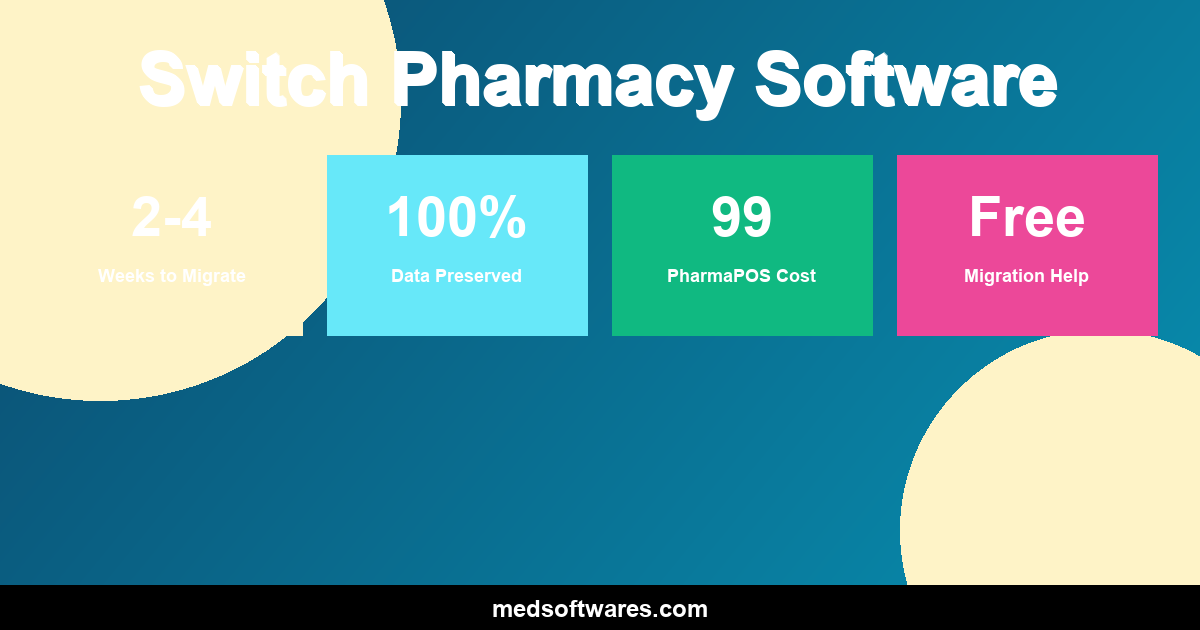
Typical migration takes 2-4 weeks from start to go-live. Simple pharmacies can be faster; complex operations may take longer.
Will I lose any data?
With proper planning, no. Export all data before switching, verify imports, and keep old system accessible temporarily.
Can I migrate prescription history?
Yes, prescription records can be migrated. PharmaPOS supports importing historical prescription data.
What if something goes wrong?
Have a rollback plan. Keep your old system available for at least a month after switching. PharmaPOS support is available to help resolve issues.
Should I migrate everything at once?
We recommend phased approach: inventory first, then customers, then historical data. This allows verification at each step.
Ready to Switch?
Next Steps
- Request Demo — See PharmaPOS in action
- Discuss Migration — We'll review your specific situation
- Get Timeline — Customized plan for your pharmacy
- Make the Switch — With our support
![Pharmacy POS System with Barcode Scanner & Mobile Payment Integration [2026 Guide]](/_next/image?url=%2Finfographics%2Fpharmacy-pos-features.png&w=2048&q=75)

